01Before you start
- An Online Store 2.0 theme. The quiz is an app block and the launcher is an app embed, so there is no theme code to edit.
- The products you want to recommend, published to your online store. Wayfind reads your catalog to show live prices on the result page.
- A rough plan on paper: the three to five questions you would ask in the shop, and the two or three results you want people to land on. That is enough for a first quiz.
02Install and choose a plan
- Install Wayfind. Approve the access it asks for. It reads products (for the result page), reads and writes customers (to save leads who leave an email) and reads orders (to count orders that carry a quiz result).
- Choose a plan. Shopify shows the app's plan page. Creator is the free plan: $0 a month plus 1% of the sales the app can prove. Studio is $29 a month flat, with no percentage. Both have every feature. Development stores are never charged.
- Land on Wayfind's Home page. It shows your quizzes, completions in the last 30 days, the Show quizzes on the storefront switch, and the Open Studio button.
03Build a quiz in Studio
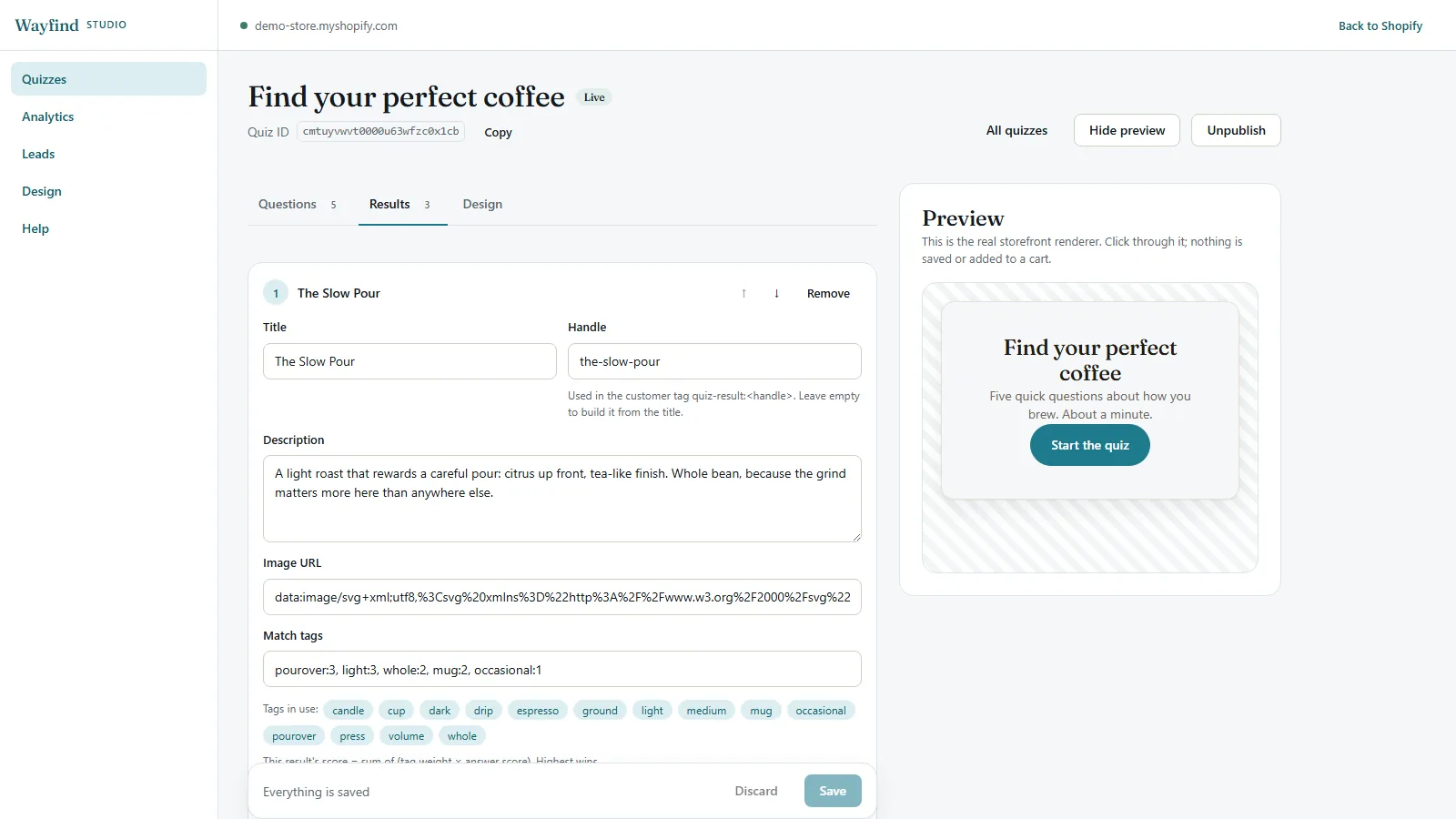
Click Open Studio on Wayfind's Home page, then New quiz on the Quizzes screen. The builder has three tabs, with a live preview beside them. The preview is the real storefront quiz, so you can click through it. Nothing in the preview is saved or added to a cart.
Questions
- Type. Single choice, multiple choice, image choice, or a 1 to 5 scale.
- Prompt and help text. The question, and an optional line under it.
- Required. On by default. Turn it off to let shoppers skip the question.
- Options and tags. Each answer gets one or more tags with a weight, such as
light:3, whole:1. On a scale question, an answer of 5 adds the full weight of its tags and an answer of 1 adds nothing.
Results
- Title, description and image. What the shopper reads when they land here. Write it the way you would say it in person.
- Handle. Used in the customer tag
quiz-result:plus the handle. Leave it empty to build it from the title. - Match tags. The tags this result is looking for, with weights. A result's score is each match weight times the shopper's total for that tag, added up. The highest score wins. On a tie, the result higher in your list wins.
- Products in this result. Pick products from your catalog, with an optional label above each one and a short note.
Design
Colours, corner radius, headings and layout for this quiz, plus the email step: Ask for an email, Require an email to see results and the consent text shoppers see next to the checkbox. New quizzes start from the defaults in Studio, under Design.
Go live
Click Save, then Go live at the top of the builder. Copy the quiz ID shown under the title. You need it if you run more than one quiz. Unpublish takes a quiz off your store without deleting it.
04Place the quiz on your store
- Add the quiz block. Online Store, Themes, Customize. Open the page you want, then Add block (or Add section, then Apps) and pick Wayfind quiz. Paste a quiz ID, or leave it empty to show your newest live quiz. You can also set a heading for this spot and a maximum width. Click Save.
- Switch on the launcher if you want it. In the theme editor, open App embeds and turn on Quiz launcher button. It adds a floating button to every page that opens the quiz in a popup. Set its label, corner and colour there or in Studio, under Design.
- Share a link if you like. Any link to your store ending in
?wf_quiz=and a quiz ID opens that quiz in a popup. It works even with the floating button switched off. Handy for emails and social bios.
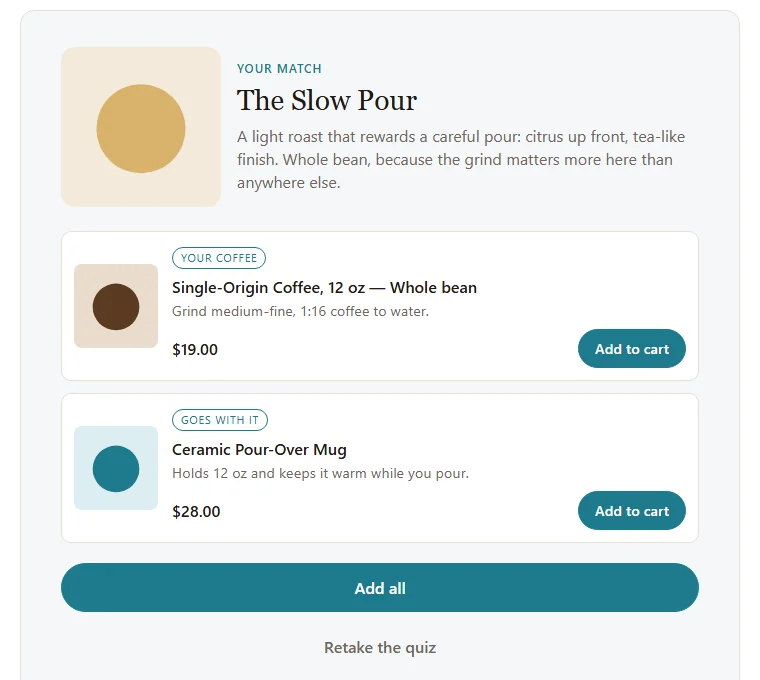
The quiz picks up your theme's fonts. The result page shows the shopper's match, your products with live prices, an Add to cart button for each and an Add all button. After an add, a View cart link appears.
05Results and leads
Analytics
Studio, Analytics shows starts, completions, emails captured, the orders the quiz was counted for and their total, and your 1% fee, for the last 7, 30 or 90 days, for one quiz or all of them. It also shows daily starts and completions, which results people reach, and a row per quiz.
Leads
Studio, Leads lists everyone who left an email: the quiz, the result they got, the date, their marketing status and their answers. Export CSV downloads the list.
- Every lead is also created or updated as a customer in your Shopify admin, tagged
wayfind-quizandquiz-result:plus the result handle. Their answers are saved in the customer metafieldwayfind_quiz.answers, so Shopify Email and Flow can use them. - Only shoppers who tick the consent box are subscribed to email marketing in Shopify. Without the tick, Wayfind leaves their marketing status alone.
- Customer data requests are on the Leads screen too. When a customer asks you for their data, Wayfind builds a file for you to download and send on.
06Billing and attribution
When a shopper finishes a quiz, Wayfind saves the result on their cart in a cart attribute named _wf_quiz, before the result page appears. On the free plan an order counts when it carries that result and the quiz was finished in the 7 days before the order. The amount is the whole order subtotal after discounts, before tax and shipping, even if the shopper bought something the quiz didn't suggest. Each order counts once, and a refund reverses the fee in proportion.
Open Wayfind, then Billing in its admin menu.
- Totals for the last 30 days: what was counted and your 1% fee.
- Attributed orders for the last 90 days: the order, the date, the quiz result that made it count, the amount counted, the fee, and a status. Pending means the charge hasn't reached Shopify yet and is retried daily. Billed means it will be on your next bill. Refunded or Partly refunded means the fee was reversed in proportion.
- Plans, with a link to change your plan on Shopify's plan page.
Turning off Show quizzes on the storefront hides every quiz and stops new orders from counting. The billing rules for every app are here.
07FAQ and troubleshooting
- The quiz doesn't show on my store. Check that the quiz is live, that the Wayfind quiz block is on the page and the theme is saved, and that Show quizzes on the storefront is on. If the block has a quiz ID, check it matches the one in the builder.
- The launcher button doesn't show. Quiz launcher button must be on under App embeds, and Show the floating button must be on in its settings. Quiz links still work when the button is off.
- A shopper took the quiz, but the order isn't on the Billing page. The order has to carry the quiz result from the same cart, within 7 days of finishing the quiz. A shopper who finished on one device and bought on another, or who cleared their cart, has a new cart without the result.
- A shopper got a result I didn't expect. Click through the preview with the same answers. Check the tags on each answer and the match tags on each result. If two results tie, the one higher in your Results list wins, so reorder them or adjust a weight.
- A lead isn't subscribed to my emails. Wayfind subscribes a lead only when they tick the consent box. The lead is still in Studio, Leads and in your Shopify customers with the Wayfind tags.
- Can I run several quizzes at once? Yes. Put a different quiz ID in each block, in the launcher settings or in each link. A block with no ID shows your newest live quiz.
- Can I pause everything without touching my theme? Turn off Show quizzes on the storefront on Wayfind's Home page or in Studio, under Design. Turn it back on when you are ready.
08Uninstall and what gets deleted
- Settings, then Apps and sales channels. Find Wayfind and choose Uninstall.
- It stops right away. The quiz block, the launcher and quiz links stop working and Wayfind stops counting new orders. An order it counted before you uninstalled can still appear on your final bill.
- Tidy up if you like. Remove the Wayfind quiz block in the theme editor. The customers, tags and metafields Wayfind wrote are part of your Shopify customer records, so they stay unless you remove them.
48 hours after you uninstall, Shopify sends Wayfind a request to erase your store's data. When it arrives, Wayfind deletes your quizzes, responses and leads, daily counts, its billing records and its access to your store. Deleting a quiz in Studio also deletes its responses. The Wayfind privacy policy has the details.